
While the task of setting up PHP on IIS was not a difficult one, it anyway required a lot of manual installation and configuration steps. With the PHP 5.2.9-1 release the PHP development community has put a lot of improvements to the PHP installer to make it easy to setup PHP on IIS 5.1, IIS 6.0 and IIS 7.0. The latest PHP installer can be downloaded from the PHP community site.
Now, with the release of Microsoft Web Platform Installer 2.0 Beta (Web PI), the task of enabling PHP on Windows OS has become the easiest it has ever been. Here are the three simple steps you need to follow:
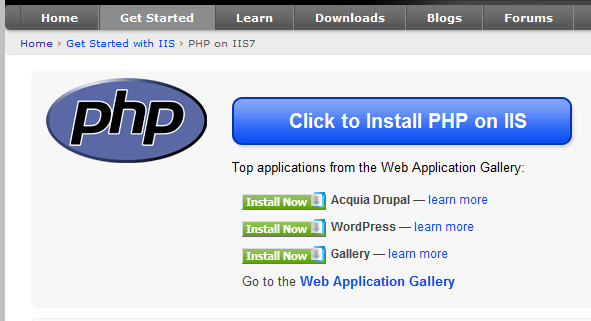
- Go to http://php.iis.net/
- Click on the big blue button “Click to Install PHP on IIS”.
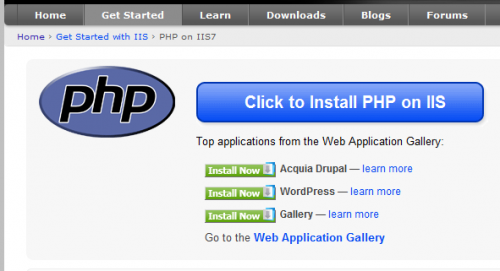
This will prompt you to install Web Platform Installer 2.0 Beta if you do not have it already. - After Web Platform Installer is launched the PHP option will be automatically selected. Click Install button to start the installation.
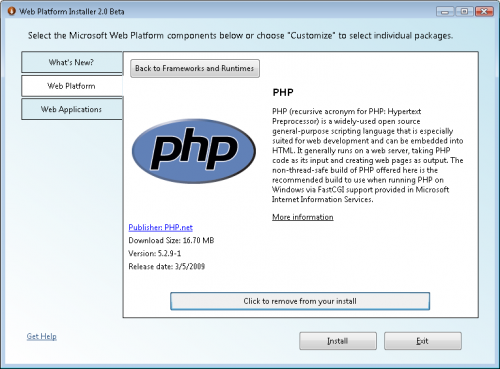
Note: on a very first run of Web PI, the PHP option might be not selected automatically. In that case you can manually select it under: “Web Platform”/”Frameworks and Runtime” category.

The nice thing about this installation process is that Web PI knows about all the dependencies for PHP and it will download and install all the required components prior to installing PHP itself. For example, if you are installing PHP on Windows XP with IIS 5.1, then WebPI will download and install FastCGI extension. If PHP is being installed on Windows Server 2008, then Web PI will enable FastCGI module, which is built-in to IIS 7.
Finally Web PI will download and run the installer for non-thread-safe build of PHP 5.2.9-1 from http://windows.php.net/download/. PHP installer will perform all the necessary configurations steps in PHP, IIS and FastCGI. So by the end of the installation process you will have the IIS and PHP ready to run your PHP applications on Windows.
Didn’t work so seemlessly on my system. Left the server unable to properly parse PHP files. Have you seen this behavior before?
MJG, did this happen on a clean machine? Or did you have the PHP installed before in any form (e.g ISAPI or FastCGI)?
What’s the actual error behavior that you see? Do you see any error messages?
I had the same problem MJG, did u resolve it?, I installed PHP from the Platform Installer but my php files doesn’t work. Did I miss something?
Best regards
To help in figuring out what went wrong, try installing PHP without Web PI. Download the non-thread-safe PHP msi. Then run it from the elevated command prompt window by using this command:
msexec /i php-5.2.10-nts-Win32-VC6-x86.msi /l* C:\install.logAfter that, open the C:\install.log file and look for strings “error” and “fail”.
The WPI package does not setup a file mapping for PHP files.
All of the instructions I found online use the isapi dll for integration, which I was unable to find in the install. It turns out that it doesnt use isapi, but rather fastcgi.
To get PHP working you may need to create a mapping from .php extension to fcgiext.dll
WPI package uses the PHP installer, which is supposed to setup script mapping for PHP files. If script mapping is not there, then you can use these instructions to set it up on IIS7 or IIS5.1 and IIS 6.0.
Yes, it didn’t work for me too. The only reason I tried this install was to avoid any configuration but I ended up doing the configuration manually:
In IIS Management Console:
1. Open properties of Default Web Site.
2. Select the Home Directory and click Configuration button.
3. Click Add on the Mappings tab, browse for C:\WINDOWS\system32\inetsrv\fcgiext.dll, set Extension to “.php”, set Limit to “GET,HEAD,POST”, check Script engine
4. Click OK
5) Restart IIS
Additionally, on IIS6 and later, you need to “enable” this CGI extension.
Jon Hart wrore:-
The WPI package does not setup a file mapping for PHP files.
I found this also – no mapping for a .php etension. In what way does that qualify as an instal?
Salman’s solution here fixed it for me – so thanks!
I had previously installed PHP (isapi) sucessfully on my XP box by hand. It was a mission but I’d managed it. I had also installed MySQL and WordPress. Agins, two more missions,with dodgy instals and undocumnted features, but it worked.
I ran across this MS WPI thing and it worked a treat on a W2008 box so I tried it on my XP box to instal a new WordPress instance. I figured I should do it the Microsoft Way, not fight the oer etc.
It didn’t take so I figured there’s a mismatch and attempted to clean off all the previous versions. Subsequent execution of the WPI, once I had really convinced it that I had removed PHP from my box, left the instal without this mapping. I guess WPI works on a clean instal but anything left behind confuses it totally.
Just wanted to say that over a year later Salman’s isntructions fixed my problem. The Web PI seems to miss that bit. You rock, good sir or mam.