
This post describes how to configure IIS to support multiple versions of PHP on the same server. This kind of setup is useful in development environments where it is necessary to test an application with different PHP versions. Also, it is often used in production environments, where many PHP applications are hosted on the same server and some of them have dependency on a particular PHP version.
In order to setup multiple versions of PHP side by side on the same IIS server it is necessary to install PHP manually by following the steps described in php.net documentation for IIS 5.1 and IIS 6.0 and for IIS 7.0 and later. Do not use PHP Windows installer because it does not support side by side installations.
After a particular version of PHP has been installed in accordance to the instructions, download another version of PHP, extract it into a separate directory and configure it in accordance to Manual Installation Steps. After that proceed to configuring an IIS server as per instructions below:
Note: in all examples below two PHP versions are installed on the same server. PHP 5.2.11 files are located in C:\PHP5211\ directory and PHP 5.3.1 files are located in C:\PHP531\ directory.
IIS 5.1
The FastCGI Extension can be configured on a server and a site level. Since IIS 5.1 can have only one web site, it is not possible to configure it to have two versions of PHP running at the same time. But it is possible to have a configuration that allows to easily switch from one version to another.
Open the IIS FastCGI extension configuration file at %windir%\system32\inetsrv\fcgiext.ini. At the end of the file there will be a section that defines FastCGI applications. It may look similar to this:
[Types]
php=php5211

[php5211]
ExePath=C:\php5211\php-cgi.exe
This configures IIS to use PHP 5.2.11 whenever a request for a *.php file is made. To switch to PHP 5.3.1, just add another section declaration and then modify the [Types] section as below:
[Types]
;php=php5211
php=php531

[php5211]
ExePath=C:\php5211\php-cgi.exe

[php531]
ExePath=C:\php531\php-cgi.exe
To switch back to PHP 5.2.11 update the [Types] section by commenting out php=php531 and un-commenting php=php5211. There is no need to restart IIS after the updates to fcgiexe.ini have been made. FastCGI Extension will pick up the changes as soon as file has been saved.
IIS 6.0
FastCGI on IIS 6.0 can be configured on a server level, which would cause all the IIS web sites to use the same PHP version. Configuring FastCGI on a server level and switching between PHP versions is exactly the same procedure as for IIS 5.1.
Additionally FastCGI can be configured on a site level, which would allow using of different PHP versions for different web sites. To assign a particular PHP version to a site, use the following commands. Make sure to replace the <site_id> with real site identifiers.
cscript %windir%\system32\inetsrv\fcgiconfig.js -add -section:"php5211" ^
-extension:php -path:"C:\php5211\php-cgi.exe" -site:<site_id>

cscript %windir%\system32\inetsrv\fcgiconfig.js -add -section:"php531" ^
-extension:php -path:"C:\php531\php-cgi.exe" -site:<site_id>
After executing these commands open the fcgiext.ini file located in %WINDIR%\system32\inetsrv. It should contain the following sections:
[Types]
php:169297538=php5211 ; The actual site id will be different for your site
php:273357939=php531 ; The actual site id will be different for your site

[php5211]
ExePath=C:\php5211\php-cgi.exe

[php531]
ExePath=C:\php531\php-cgi.exe
IIS 7.0 and later
FastCGI module in IIS 7.0 can be configured on any level: server, site, application and folder. This means that it is even possible to have two applications using different PHP versions within the same web site.
To configure FastCGI on a server level, use these commands:
%windir%\system32\inetsrv\appcmd set config /section:system.webServer/fastCGI ^
/+[fullPath='c:\php531\php-cgi.exe']

%windir%\system32\inetsrv\appcmd set config /section:system.webServer/handlers ^
/+[name='php531', path='*.php',verb='*',modules='FastCgiModule',^
scriptProcessor='c:\php531\php-cgi.exe',resourceType='Either']
Repeat these commands for all the other versions of PHP. By default IIS will use the version that was added last. Now, if you need to use a particular version of PHP for the entire server or for a particular web site, you can just re-order the FastCGI handler mappings for PHP.
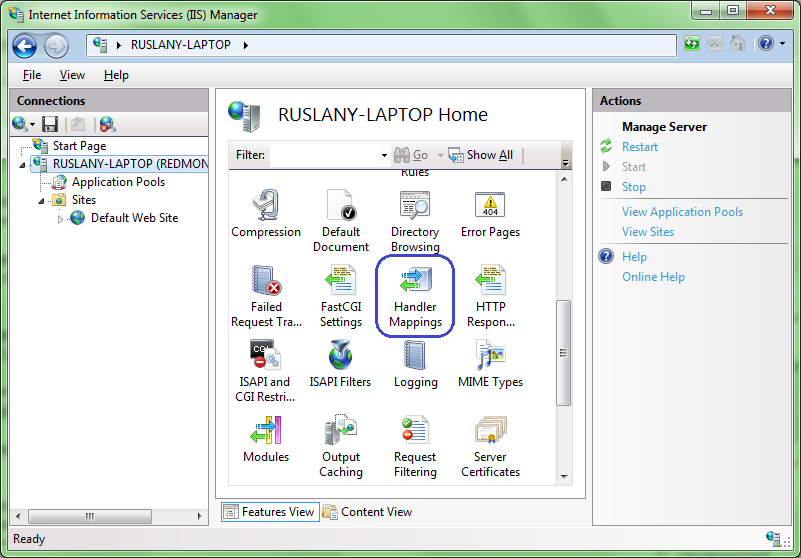
Open IIS Manager and use a tree view on left hand side to select a server, site or an application. After that click on “Handler Mappings”:
Then click on “View Ordered List…” action:
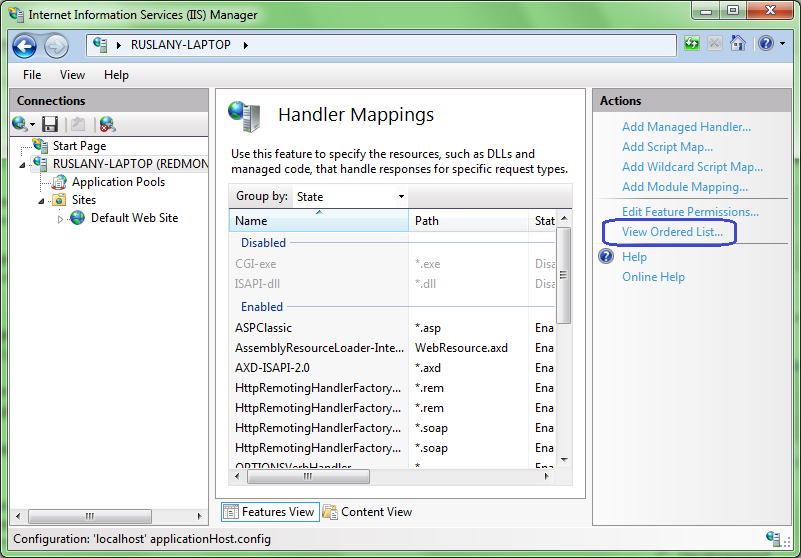
Select the handler mapping for the PHP version that you want to use for the server or a site and use “Move Up” action to move it to the top of the list. This will enable that particular PHP version for the currently selected IIS configuration scope.

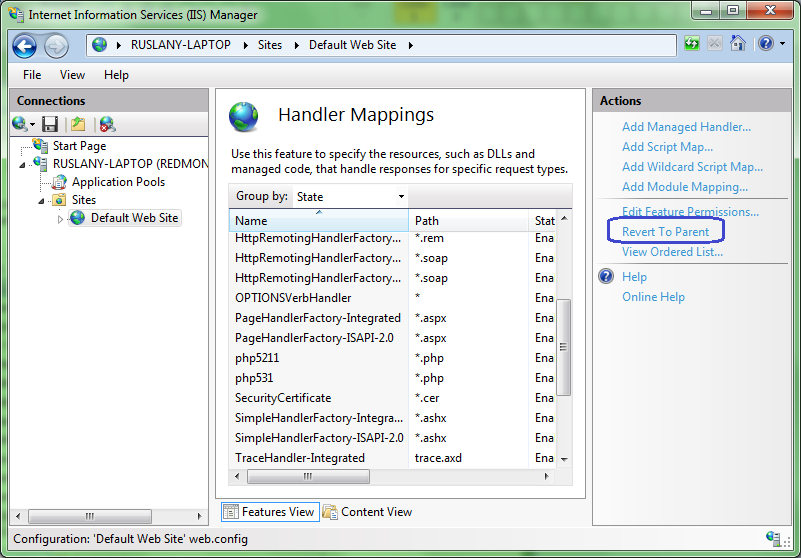
Note that if you re-order handler mappings on a site or an application level, that site or application will stop inheriting the handler mappings from the upper configuration levels, so the changes to the handler mappings on the server level will not propagate to the site level anymore. To configure a site or an application back to using the inherited handler mappings, use the “Revert To Parent…” action:
Saw a demo of this at TechEd NZ this year by Jorke Odolphi, very cool. Apparently the speed of PHP on Windows vs Unix is pretty much the same now… 😉
A side note: if you want the installations to use separate php.ini files as well, modify your fcgiext.ini file as follows:
[php5211]
ExePath=C:\php5211\php-cgi.exe
Arguments=-c C:\php5211\php.ini
[php531]
ExePath=C:\php531\php-cgi.exe
Arguments=-c C:\php531\php.ini
Another side note: it is possible to have the two separate installations load php shared dlls (not the extensions) from one directory. If this is the case you may try removing PHP path from windows PATH environment variable and add it back to per section environment variables thru fcgiext.ini file.
Very nice guide! I’m impressed with how switching PHP versions on IIS is so easy. Just did it myself in a few minutes.
The IIS platform is becoming more and more compelling to use with PHP.
Great guide. Don’t forget to add both PHP directories to the PATH variable and configure each install to point to the correct php.ini.
5 Wow….
I really need such guide. I’m going to install PHP different version on my new server but i don’t know how do i install multiple version.
Thanks
I installed PHP 5.2.13 using the Web Platform Installer, then I manually installed PHP 5.3 to run a different website. What I then noticed was that both versions of PHP were loading the same php.ini file. Eventually, I figured out what to do to get each version loading its own php.ini file. (Ruslan very wisely warns about using an installer if you want multiple PHP versions.)
So, if you installed PHP with the Web Platform Installer (or the Windows installer) and you want a second PHP version that loads its own php.ini file, here’s what to do:
1. Delete the PHPRC environment variable (Control Panel|System|Advanced Settings). This variable was added by the installer.
2. Restart your machine.
3. Manually add/configure a handler for you 2nd PHP version.
Hope that helps somebody.
-Brian
Trying to get this to work on IIS 6, with PHP 5.3,5.2 and 4 TS. Does not seem to work.
Note I need all 3 of the above to work with their own individual PHP.ini files. Can this be accomplished? One thing I noticed is I’ve set in IIS .php to use C:\apps\php5\php-cgi.exe and not the fcgi dll file.
Thoughts?
Where you say: To configure FastCGI on a server level, use these commands:
Where do the commands go? Where are they used?
I understand everything else you’ve said but not the command part.
Thanks
Is there something different on latest PHP versions? I tried to follow this guide using 5.6 version from http://windows.php.net/download#php-5.6 but cant put it at work…it keeps complaining a bunch of dll missing
You can do the same using PHP Manager module for IIS.
You can use the PHP Manager to:
Register PHP with IIS;
Validate and properly configure existing PHP installations;
Run multiple PHP versions side by side on the same server and even within the same web site;
Check PHP runtime configuration and environment (output of phpinfo() function);
Configure various PHP settings;
Enable or disable PHP extensions;
Remotely manage PHP configuration in php.ini file.
https://www.iis.net/downloads/community/2018/05/php-manager-150-for-iis-10
Great to see that this project has been moved to github and updated to support IIS 10!
Excellent blog! Do you have any tips and hints for aspiring writers? I’m planning to start my own website soon but I’m a little lost on everything. Would you suggest starting with a free platform like WordPress or go for a paid option? There are so many options out there that I’m completely confused .. Any suggestions? Thanks!|